Installation & Setup
Connect your development environment to Invarium in under 2 minutes.
- ✓Two paths: MCP server for IDE integration, or Dashboard for web-based usage
- ✓MCP setup: add a JSON config block to your IDE settings — takes under 2 minutes
- ✓Dashboard setup: create account at app.invarium.dev, generate API key
- ✓Same API key works for both MCP and Dashboard
Why It Matters
Installation connects your development environment to Invarium’s behavioral QA engine, enabling you to test, audit, and score your AI agents without leaving your IDE or adding any dependencies to your project.
How to Set Up
Dashboard Setup
The web dashboard at app.invarium.dev gives you full access to Invarium without any local installation.
Create your account
Go to app.invarium.dev and click Create Account. You can sign up with:
- Email and password — enter your full name, email, and a password
- Google — one-click sign-in with your Google account
- GitHub — one-click sign-in with your GitHub account
After signing up, you will be taken to your dashboard.
Generate an API key
Navigate to Settings in the sidebar, then select the API Keys tab.
- Enter a name for your key (e.g., “development” or “ci-pipeline”)
- Click Generate New Key
- Copy the key immediately — it starts with
inv_and will not be shown again
Store your API key securely. Do not commit it to version control or share it publicly.
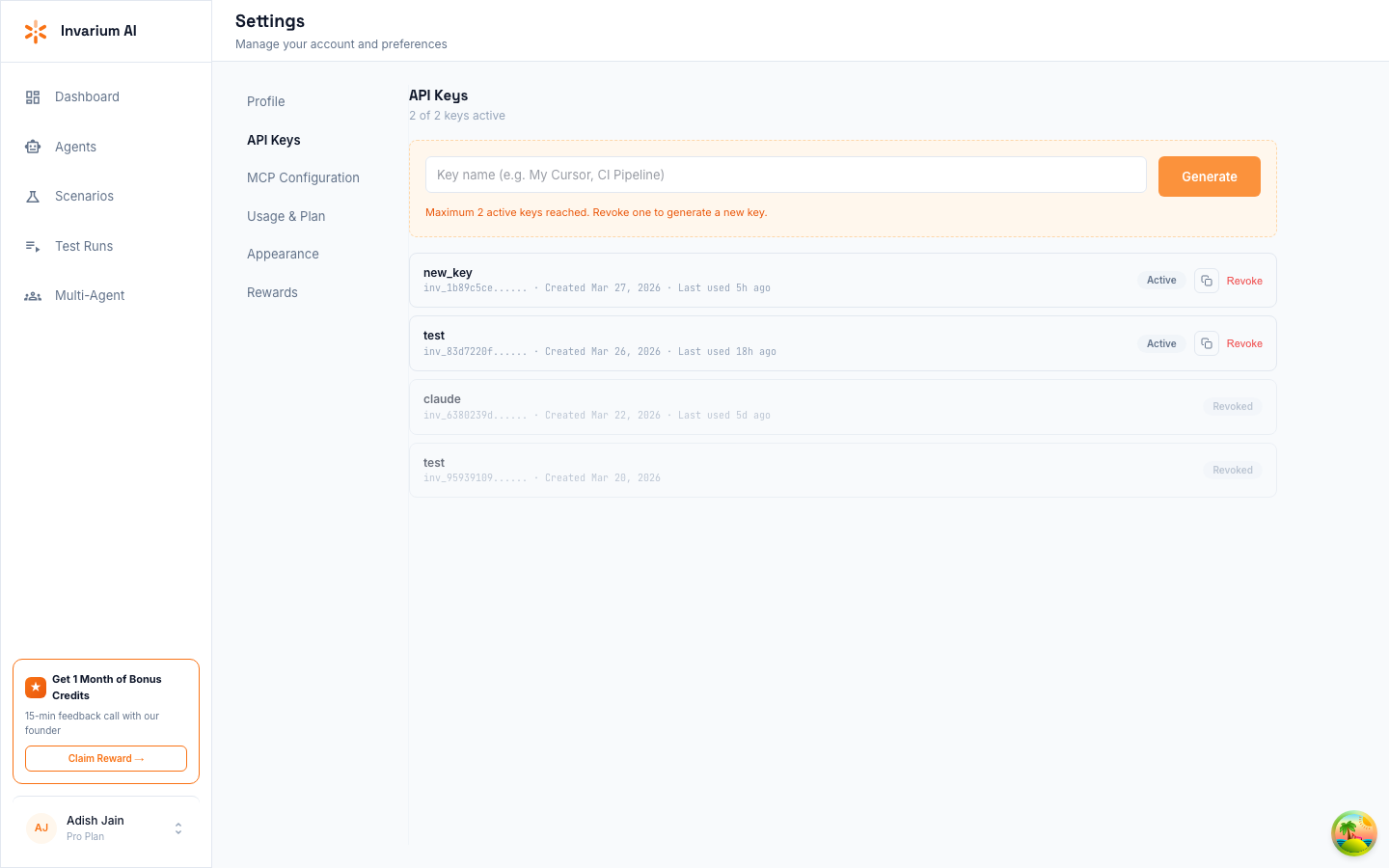
You are now ready to create agents, generate test scenarios, and run tests from the dashboard.
Troubleshooting
”Authentication required”
Your API key is missing or not set. Verify that:
- The
Authorizationheader is set in your MCP config with the formatBearer inv_xxxxx - The key starts with
inv_and is at least 32 characters - You restarted your IDE after changing the configuration
”Invalid API key”
The key format is correct but the server rejected it. The key may have been revoked. Generate a new one at app.invarium.dev/settings/api-keys.
Server not appearing in IDE
- Check your MCP config file for valid JSON syntax (a missing comma or bracket is the most common cause)
- Verify the URL is exactly
https://mcp.invarium.dev/mcp - Restart your IDE after adding the configuration
Connection timeout
- Check your internet connection
- Try again in a few minutes — the server may be restarting
FAQ
Can I use both MCP and Dashboard?
Yes. The same API key works for both interfaces. Agents, scenarios, and test results are shared — anything you create from your IDE appears in the dashboard and vice versa.
Which IDEs are supported?
Cursor, Claude Code, Windsurf, and any MCP-compatible client that supports Streamable HTTP transport. The MCP server is hosted — no local dependencies or installations required.