Quickstart
Test your first AI agent in under 10 minutes.
- ✓Test your first agent in under 10 minutes — connect, upload blueprint, generate tests, run, view results
- ✓Works end-to-end from your IDE (MCP) or the web dashboard
- ✓No SDK integration or code changes required
Why It Matters
The quickstart walks you through Invarium’s complete workflow — from registering an agent to viewing behavioral test results — so you can validate your agent’s reliability before it reaches production.
Prerequisites
Before starting, make sure you have:
- An Invarium account — sign up at app.invarium.dev if you have not already
- An API key — generate one from Settings > API Keys in the dashboard
- Your IDE configured (MCP path only) — see Installation & Setup for config instructions
How to Use It
Dashboard Path
The web dashboard at app.invarium.dev provides a guided interface for the complete workflow.
Create an agent
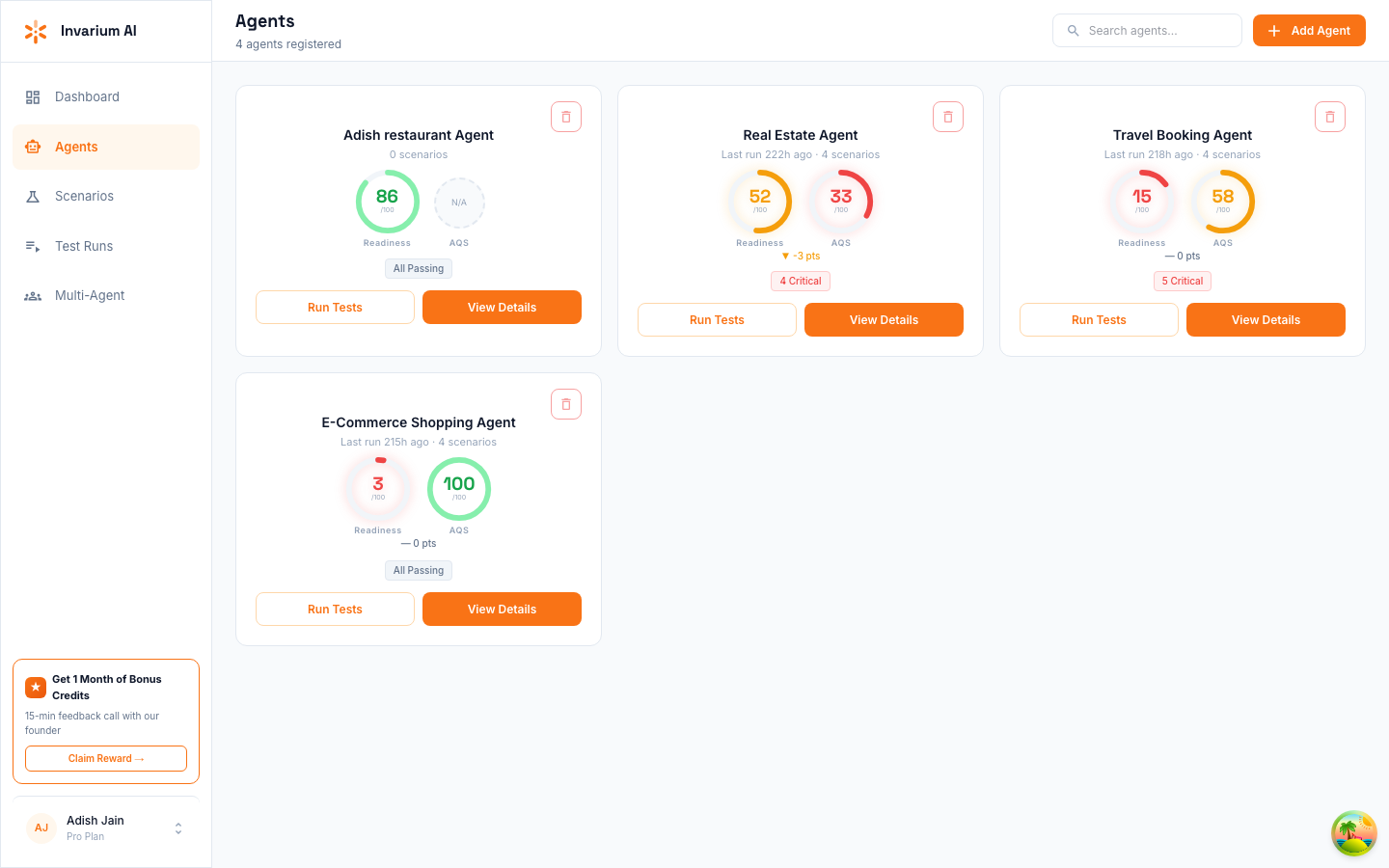
Navigate to Agents in the sidebar and click Create Agent.
You can create an agent using the guided wizard or by importing a YAML blueprint (a structured description of your agent’s tools, workflows, and constraints):
- Wizard — step-by-step form that walks you through naming your agent, adding tools, defining constraints, and describing workflows. Best for first-time users.
- JSON Import — paste or upload a complete blueprint JSON. Best for power users or when migrating from an MCP-generated blueprint. (MCP generates YAML — convert to JSON or use the wizard to reproduce the same fields.)
For this quickstart, use the wizard and fill in:
- Agent name:
customer-support-agent - Description: “Handles customer inquiries by searching a knowledge base and providing accurate answers.”
- Framework: LangChain (or your framework of choice)
- Add one tool:
search_knowledge_base— “Searches the internal knowledge base for articles matching the customer query.” - Add constraints: “Never fabricate information not found in the knowledge base” and “Always cite the source article when answering”
Generate test scenarios
Navigate to Scenarios in the sidebar and click Generate with AI.
Enter a description of what you want to test, for example:
Generate 10 behavioral test scenarios for my customer support agent,
focusing on edge cases like missing knowledge base results,
frustrated users, and multi-turn conversations.
Invarium generates scenarios targeting your agent’s specific failure modes based on its blueprint.
Review generated scenarios
Each generated scenario includes:
- Description — what the test is checking (e.g., “Agent should not hallucinate when knowledge base returns no results”)
- Complexity — simple, moderate, or complex
- Target failure type — the failure category being tested (e.g., knowledge, tool_usage, safety)
- User message — the input to send to your agent
- Expected behavior — what a correct response looks like
Review the scenarios and remove or edit any that do not apply to your use case.
Create and run a test run
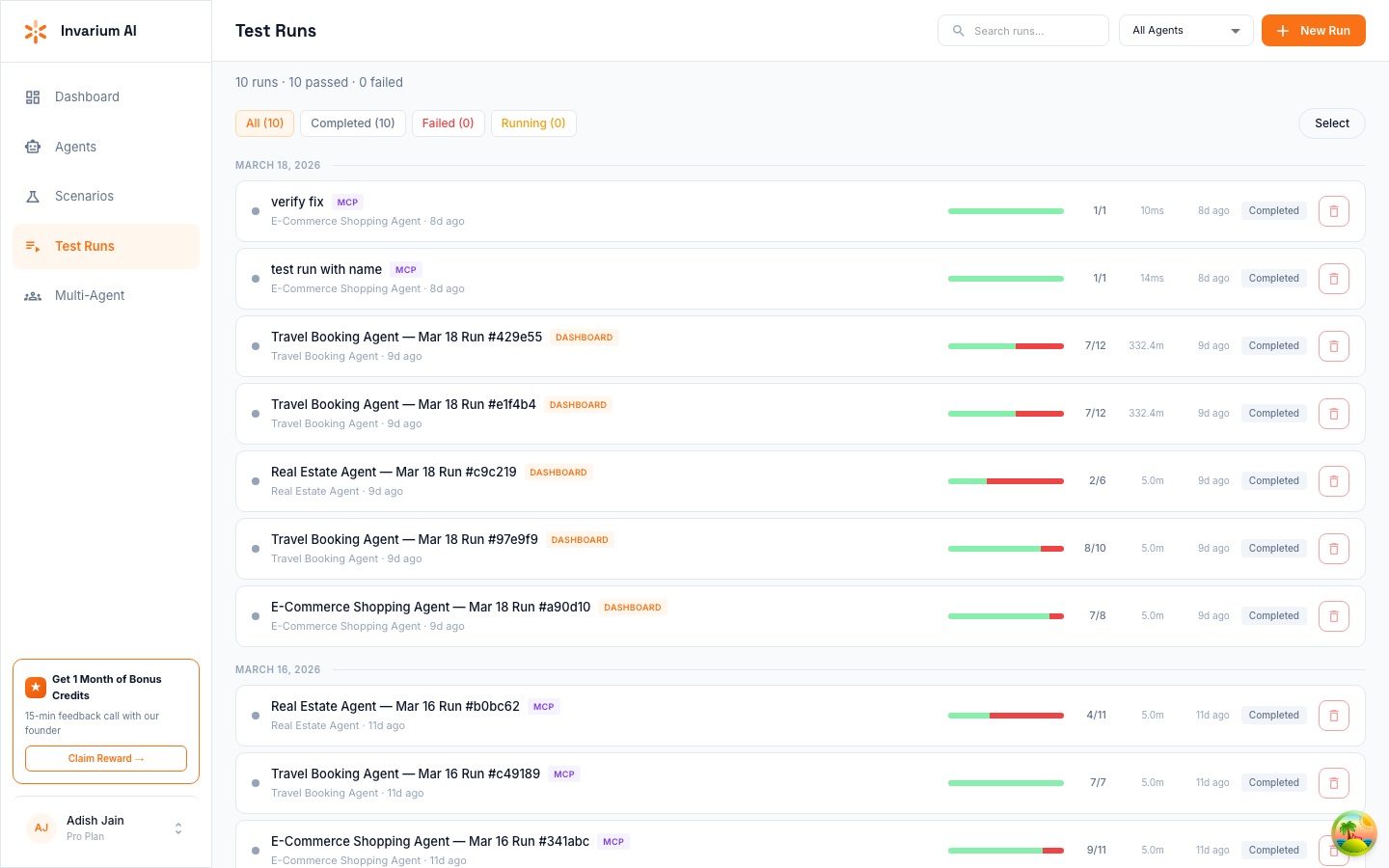
Navigate to Test Runs and click Create Test Run.
- Select your agent (
customer-support-agent) - Choose which scenarios to include (select all for a comprehensive first run)
- Click Run
The test run executes each scenario against your agent and evaluates the results.
Test runs typically complete in 30-60 seconds depending on the number of scenarios and your agent’s response time.
View results
Click on the completed test run to see detailed results:
- Agent Quality Score (AQS) — a composite score from 0 to 100 reflecting your agent’s behavioral reliability
- Pass/fail breakdown — how many scenarios passed vs. failed
- Failure details — for each failed scenario, the specific failure type (e.g., “Tool Usage > Missing Validation”) and a recommendation for fixing it
- Agent Intelligence Graph — a visual map of your agent’s architecture with nodes color-coded by test coverage
Use the failure details to identify what to fix in your agent before running another round of tests.
What’s Next After Your First Test
Once you have completed your first test run, here are the recommended next steps:
- Improve your agent — use the failure details and recommendations from your test results to fix behavioral issues in your agent’s code
- Generate more tests — create additional test scenarios with different complexity levels (simple, moderate, complex) to increase behavioral coverage
- Explore the Agent Intelligence Graph — visualize your agent’s architecture and identify unguarded paths and missing safeguards. See Agent Intelligence Graph