Run Tests and Sync Results
Execute behavioral tests against your agent and view results on the dashboard.
- ✓Run tests by executing your agent against generated scenarios and capturing behavioral traces
- ✓The trace library auto-patches popular LLM SDKs -- no code changes needed to start capturing data
- ✓Results sync to the dashboard for evaluation, scoring, and comparison across test runs
Why It Matters
Behavioral tracing captures every action your agent takes during a test — tool calls, LLM interactions, timing, and decision paths — creating an auditable record of how your agent reached its answer.
Traditional testing checks outputs. Behavioral tracing captures the process — which tools were called, in what order, how long each step took, and which tools were skipped. This is the data that powers Invarium’s failure classification, quality scoring, and regression detection.
What Gets Captured
For every test case execution, Invarium records:
- Tool calls — name, arguments, result, duration, and execution order
- LLM interactions — which model was used, tokens consumed, tools offered vs. tools chosen
- Timing — total duration, per-tool duration, per-LLM-call latency
- Tool call sequence — the ordered list of tools your agent called, compared against the expected sequence
- Cost estimate — estimated LLM cost based on token usage (supports OpenAI, Anthropic, and Google Gemini models)
- Input and output — the user message sent and the agent response received
Supported frameworks
The trace library works with the most popular LLM SDKs out of the box:
- OpenAI (sync and async)
- Anthropic (sync and async)
- Google Gemini (new
google.genaiSDK) - LangChain (via callback handler)
No configuration or code changes required for OpenAI, Anthropic, and Gemini — the tracer detects and instruments them automatically. LangChain requires attaching a callback handler (see MCP tab for setup).
Privacy and PII redaction
Before any data leaves your machine, the tracer automatically scrubs sensitive information including social security numbers, credit card numbers, email addresses, phone numbers, and common sensitive field names (passwords, tokens, API keys). Redaction is enabled by default.
How to Use It
Dashboard: Test Runs
Create a test run
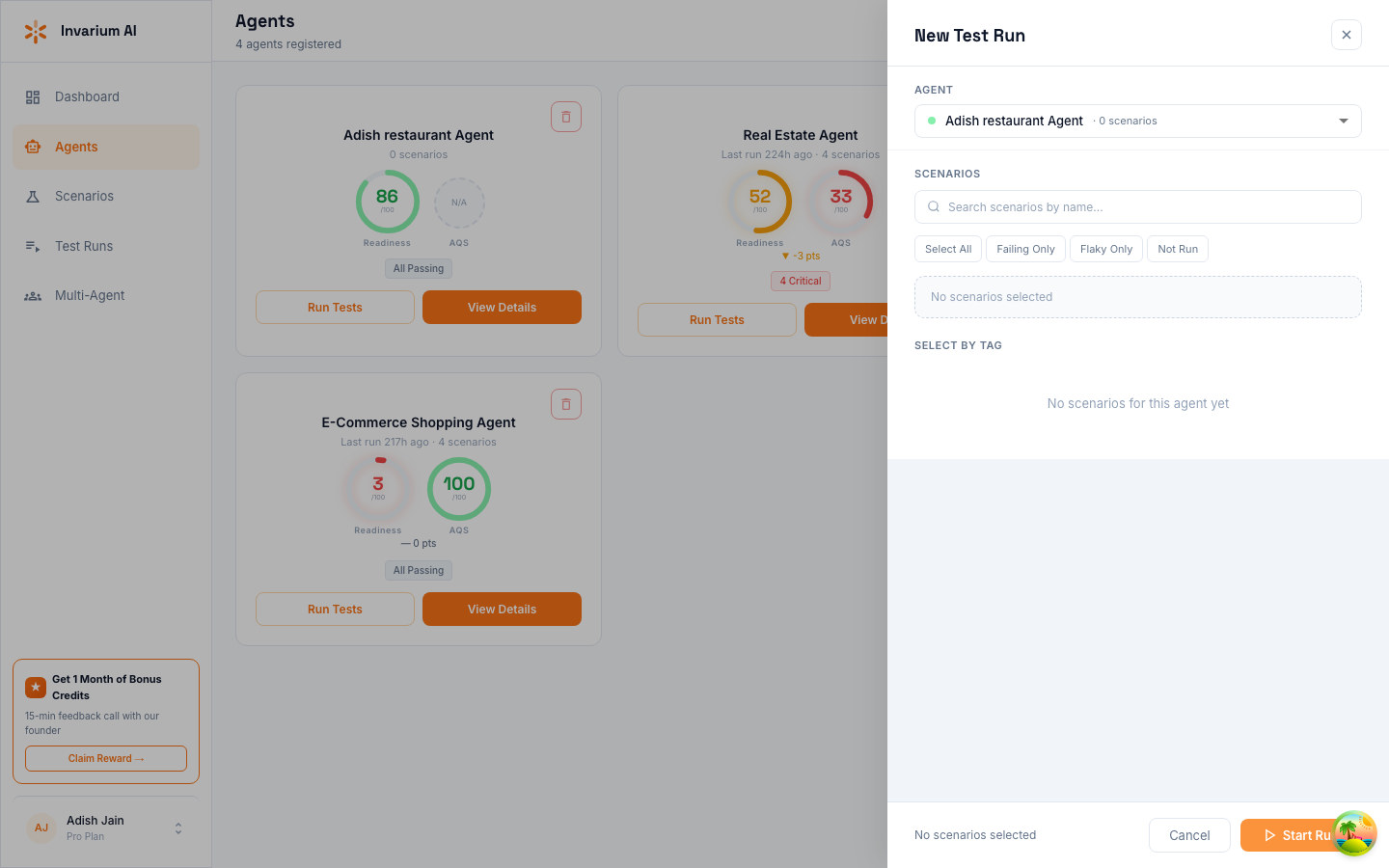
Navigate to your agent’s page and click Run Tests. The test run drawer opens where you select which scenarios to include.
Monitor progress
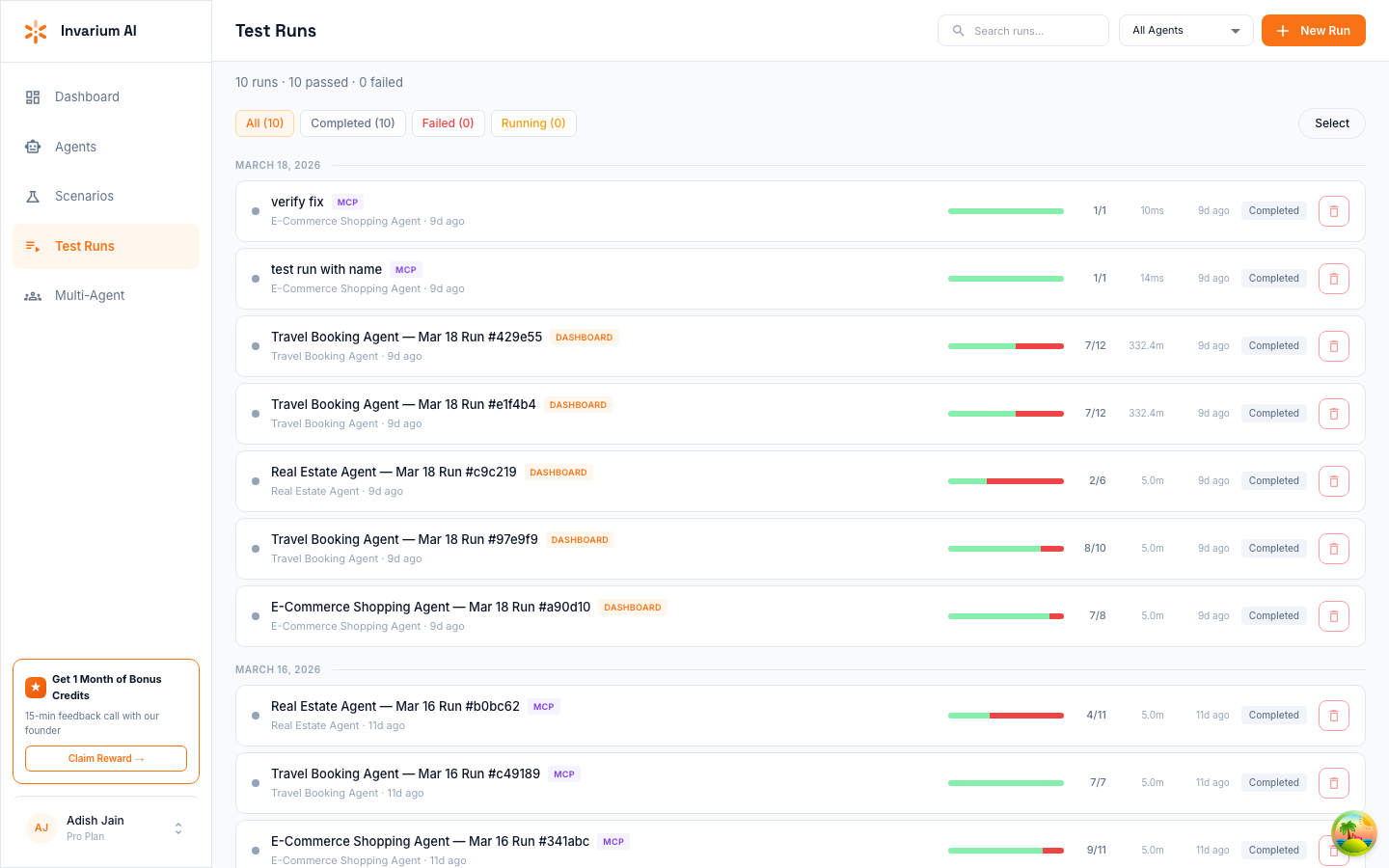
Results appear on the dashboard as each test case completes. You can monitor all test runs from the Test Runs page in the sidebar.
Review results
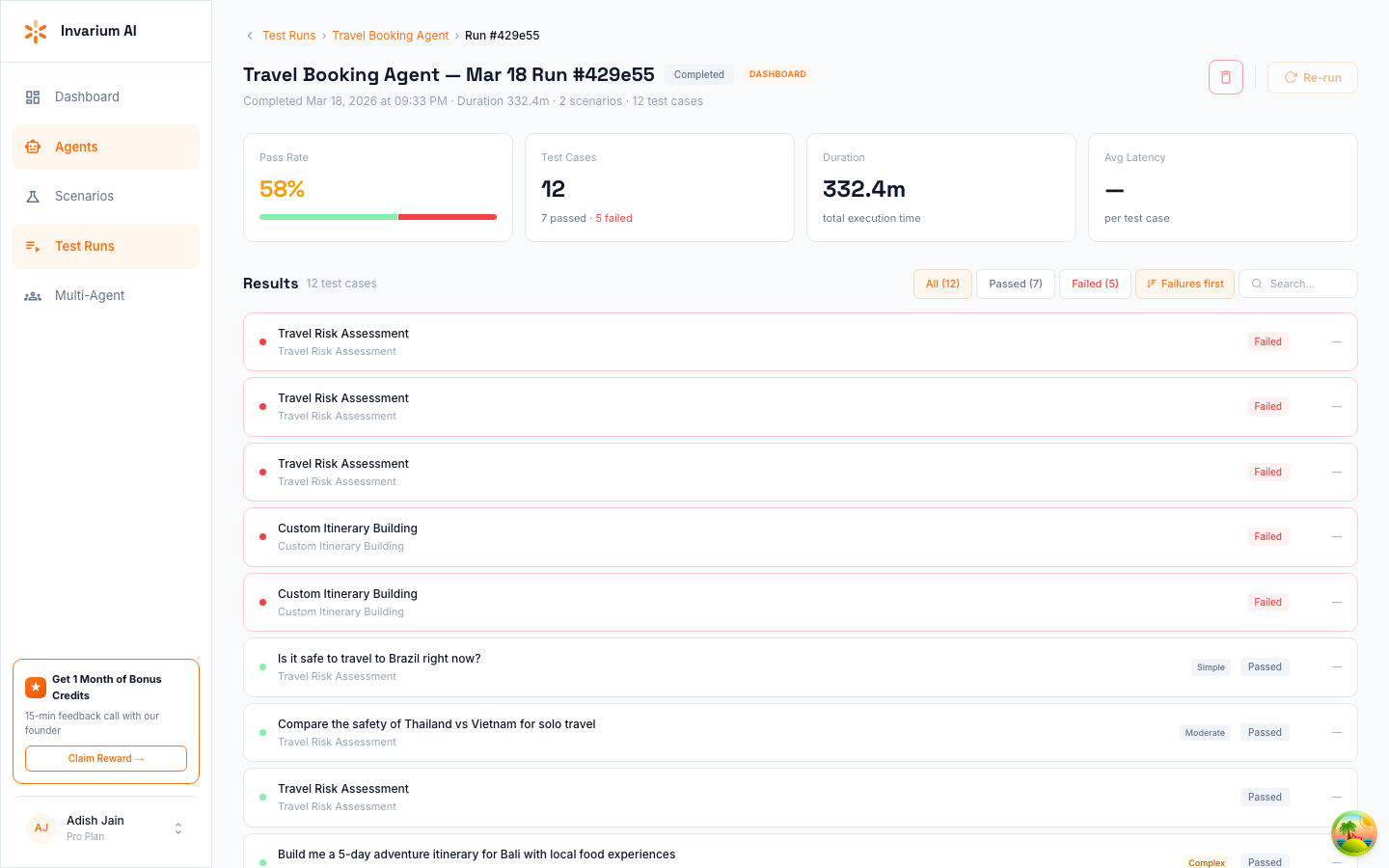
Click into any test run to see the detailed results — pass rate, total results, duration, and individual test case outcomes.
Viewing Results
After a test run completes, results are available on the dashboard and via MCP.
Test run summary
The summary view shows aggregate data for the entire run:
- Pass rate — percentage of test cases that passed
- AQS — Agent Quality Score for this run (0-100)
- Failure breakdown — count of failures by category (e.g., 3 Tool Usage, 2 Knowledge, 1 Safety)
- Cost estimate — total estimated cost across all LLM calls
- Duration — total execution time
Individual results
Click into any test result to see:
- Status — passed, failed, or pending
- User message — the test input
- Agent response — what the agent returned
- Tool call sequence — which tools were called, in what order, with what arguments
- Expected vs. actual comparison — showing missing steps (tools that should have been called but weren’t), extra steps (tools called unexpectedly), and reordered steps
Filtering results
Filter by status (passed/failed), failure category, or search by user message text.
Comparing Test Runs
Select two test runs to see how your agent’s behavior changed between them.
The comparison view highlights:
- AQS delta — score change with direction (e.g., “72 to 81, +9”)
- Regressions — test cases that previously passed but now fail (highest priority to fix)
- Improvements — test cases that previously failed but now pass
- New test cases — scenarios that only exist in the newer run
Regressions are the most important signal. A regression means your agent’s behavior got worse for a specific scenario, which typically indicates a code change or prompt modification had unintended side effects.
FAQ
Do I need to modify my agent’s code?
No. The trace library instruments your LLM SDK automatically. Your agent code runs unchanged.
What if I use a custom LLM client?
If you use a custom HTTP client instead of the supported SDKs (OpenAI, Anthropic, Gemini, LangChain), you can still sync results manually. Ask your coding agent to sync the results with the tool call data you provide.
What is the maximum number of results per sync?
Up to 1,000 results per sync. For larger test suites, results can be synced incrementally across multiple calls to the same test run.