Manage Scenarios
Create, edit, tag, and organize your behavioral test library.
- ✓Scenarios are reusable test cases you can organize, tag, edit, and re-run across test cycles
- ✓Manage your test library -- create, edit, tag, and delete scenarios as your agent evolves
- ✓Available tags: security, adversarial, functional, edge-case, performance, i18n
Why It Matters
Scenario management is the process of organizing your behavioral test library into a curated, tagged collection of reusable test cases that evolve alongside your agent.
AI-generated scenarios are a starting point. Over time, you refine them — adding domain-specific edge cases, tagging by category, removing tests that are no longer relevant, and creating custom scenarios for failures you have observed in production. A well-managed scenario library becomes the backbone of your agent’s quality assurance.
How to Use It
Dashboard: Scenario Management
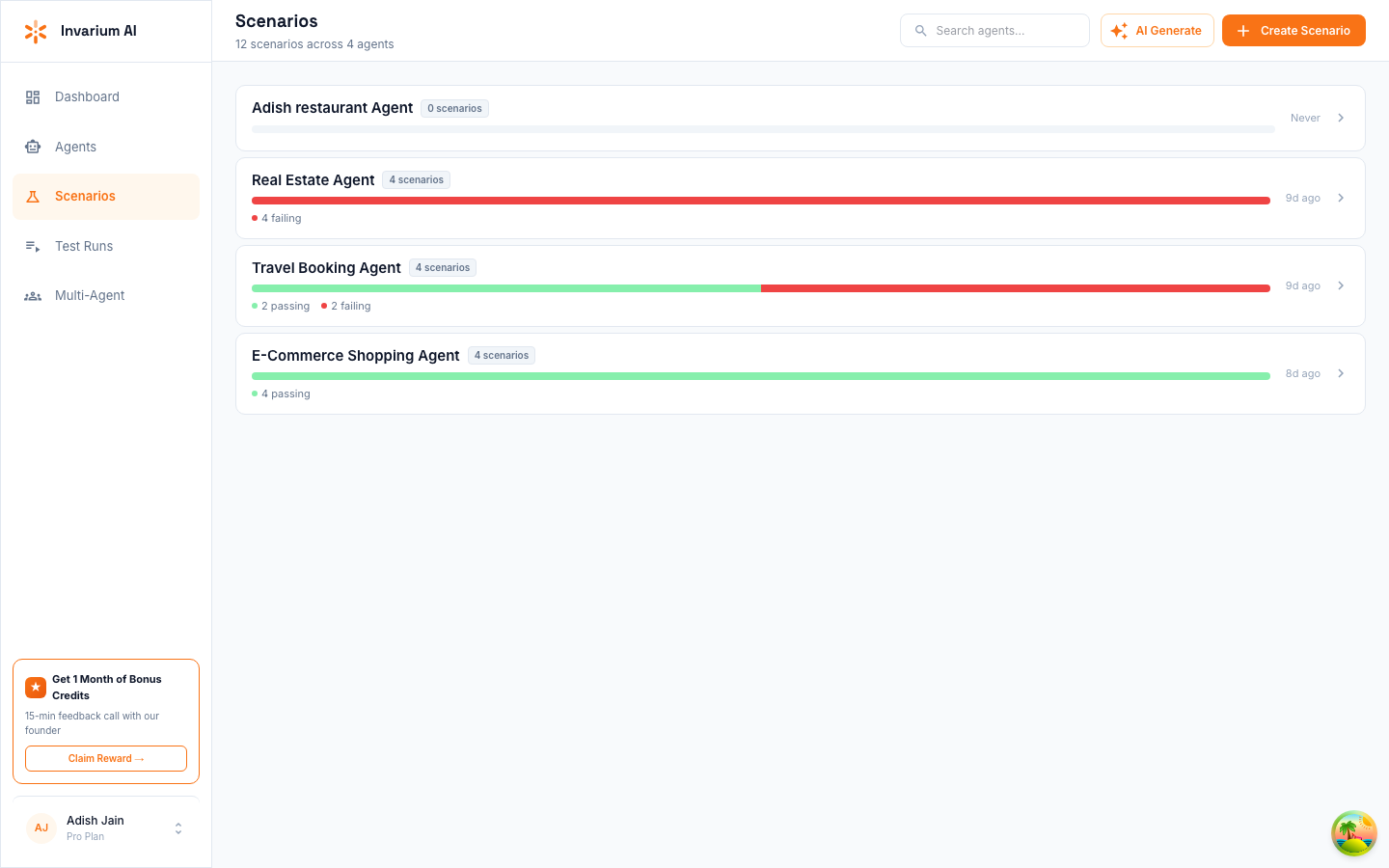
View your scenario library
Navigate to your agent’s page and select the Scenarios tab. The list shows every scenario with:
- Status badge (PASSED, FAILED, NOT_RUN)
- Title and description
- Complexity level
- Number of test cases
Filter by status (passed, failed, not_run). Paginate through large libraries using the page controls.
Create a scenario manually
Click Create Scenario to open the scenario wizard. Fill in:
- Name — short descriptive title (e.g., “Refund with expired coupon”)
- Description — what this scenario tests
- User message — the input the agent should handle (e.g., “I want a refund for order #4521 and I had a coupon applied”)
- Expected tools — the tools the agent should call, in order (e.g.,
["lookup_order", "validate_coupon", "process_refund"]) - Expected behavior — text description of what the agent should do
- Complexity — simple, moderate, complex, mixed, or edge_case
- Tags — categorize with one or more tags
The wizard validates your input and creates the scenario with a single test case.
Edit existing scenarios
Click any scenario to open its detail view. You can edit:
- Name and description
- Expected behavior
- Tags
Changes save immediately. Editing does not affect past test run results — only future runs use the updated scenario.
Bulk operations
Select multiple scenarios using checkboxes to perform bulk actions:
- Delete — permanently remove selected scenarios and their test cases
- Tag — apply tags to multiple scenarios at once
Use tag filters to narrow the list before applying bulk operations.
Tags Reference
Tags help organize scenarios by category. Use them to filter your scenario library and create focused test runs.
| Tag | Purpose | Example use |
|---|---|---|
| security | Scenarios testing guardrails, access control, and safety constraints | Prompt injection attempts, PII handling, unauthorized data access |
| adversarial | Scenarios designed to break or exploit the agent | Jailbreak attempts, boundary probing, conflicting instructions |
| functional | Core functionality and happy-path workflows | Standard tool usage, expected workflows, basic operations |
| edge-case | Boundary conditions, unusual inputs, limit scenarios | Empty inputs, maximum-length strings, special characters, concurrent requests |
| performance | Load, latency, and resource constraint scenarios | Timeout handling, rate-limit behavior, large payload processing |
| i18n | Internationalization and localization scenarios | Multi-language inputs, character encoding, locale-specific formatting |
You can assign multiple tags to a single scenario. Tags are free-form strings — while the above are recommended conventions, you can create custom tags (e.g., "billing", "onboarding", "v2-migration") to match your team’s workflow.
Scenario Lifecycle
Scenarios follow a natural progression through your testing workflow:
Create
Scenarios enter the library through AI generation or manual creation. New scenarios start with a status of not_run and an active state of true.
Run
Active scenarios are included in the next test run. The agent is executed against each scenario’s test cases, and results are captured with behavioral traces. After execution, the scenario’s status updates to passed or failed.
Review
Examine results on the dashboard or via MCP. For failed scenarios, review the expected vs. actual diff to understand what went wrong. Decide whether the failure is a genuine agent bug or a scenario that needs refinement.
Iterate
Based on results, take one of several actions:
- Fix the agent — the scenario revealed a real bug. Fix the agent code and re-run.
- Refine the scenario — the expected behavior was too strict or incorrect. Update the scenario’s expected tools or expected behavior.
- Delete — the scenario is no longer relevant (e.g., testing a deprecated feature). Remove it from the library.
- Generate more — the scenario revealed a category of failures. Generate additional scenarios targeting the same failure category to improve coverage.
Over time, your scenario library grows into a comprehensive regression suite that catches regressions before they reach production.